
- Details
- Written by: Mariana Cherneva
- Category: Tutorial templates
- Hits: 1217
Thanks to the management of the templates, bindCommerce is able to generate alternative product descriptions, professionally formatted, to be used for the generation of ebay or other marketplace listings.
Connector for creating / updating alternative descriptions:
Template (applied to) Product selection (generate) → Alternative description (formatted)
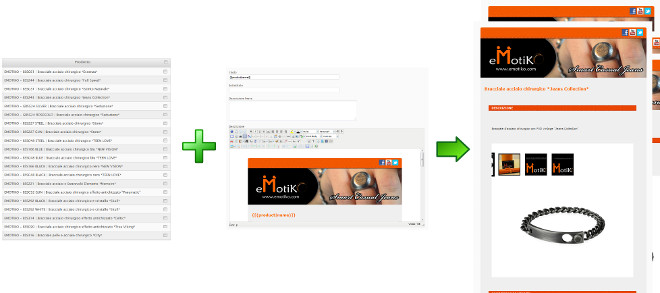
The template used can be generated from one of those available in the exclusive bindCommerce gallery, or created in complete freedom according to the customer's preferences.
The images of the alternative description will be transported to a specific Web Server node and recalled through absolute addresses (URL), in order to make the advertisements generated absolutely independent from bindCommerce.
To do
In summary, the activities that you need to manage to generate alternative descriptions with templates are the following:
- Creation of a Web Server node where the images supporting the advertisements will be published
- Creation of the alternative where to save the formatted description
- Creation and customization of your own formatted template
- Creation and activation of a connector to create / update the alternative description based on the previous template
- Details
- Written by: Valentina Cascio
- Category: Tutorial templates
- Hits: 1251
Through the template manager, bindCommerce is able to produce responsive photo galleries to be included in the body of eBay listings.
To insert a series of images you need to choose the point where you want to view the photos in the template, and insert the following tag
{[(product|from==0|q==9|class==imgresp|nodimension==yes|d==line|child==Y|image_big)]}
Inside the tag it is necessary to indicate how many images you want to consider in the gallery, by changing the values for the fields
from==0
q==9
In addition, you can determine whether to also consider images for child products, or not, by changing the value for the following field
- child==Y: images of child products will be considered
- child==N: and images of child products will be excluded

Use of Image Tags
Una nuova funzione della piattaforma bindCommerce consente di gestire la posizione delle immagini all'interno del template massivamente. La funzione consente di determinare se all'interno del template devono esserci una o più sezioni dedicate esclusivamente ad alcune tipologie di immagini, come nel caso di una sezione destinata esclusivamente alle immagini delle schede tecniche.
A new function of the bindCommerce platform allows you to massively manage the position of images within the template. This function allows you to determine whether there must be one or more sections within the template dedicated exclusively to certain types of images, as in the case of a section intended exclusively for images in the technical data sheets.
Just apply specific tags to each image associated with an article (for example image_1, image_description, image_datasheet). Within the template, the position of each type of image will then be determined using the appropriate tag, plus the field
tags==valore del tag
for example:
{[(product|from==0|q==8|tags==image_1|class==imgresp|nodimension==yes|d==line|image_big)]}
Using this string, only the images, from 0 to 8, with the tag image_1 will be inserted in the predetermined position.
To allow description generation connector to work correctly it will be necessary to create specific custom parameters. From the menu
Process >> System parameters >> Custom parameters
create a new parameter and enter the value in the Parameter name field
IMAGES_TAGS_EBAY_ID CONNETTORE
where the CONNECTOR ID value varies based on the ID of the alternative description generation connector in use (for example IMAGES_TAGS_EBAY_123)
Instead, inside the Parameter value field it will be necessary to insert the values of the image tags that you want to consider for the generation of the descriptions, separated by commas.
For example image_1,image_description,image_datasheet
If you are using multiple description generation connectors you will need to create a custom parameter for each connector ID.
- Details
- Written by: Paolo Tateo
- Category: Tutorial templates
- Hits: 1418
bindCommerce allows you to manage multiple descriptions for each item in the product catalog. Additional descriptions to the main one are called "alternative descriptions". The use of alternatives can be very useful for managing translations, enrichments and variants intended for specific uses, such as descriptions for the eBay marketplace. To find out specifically what alternative descriptions are and what they are for, you can refer to the appropriate guide Alternative descriptions.
The connector for generating alternative descriptions allows you to populate an alternative products from the main product table or from another alternative, using templates or the HTML editor. bindCommerce also provides a gallery of ready-to-use templates, which can be modified at will.
Therefore in any case before using this connector it will be necessary to properly configure a template. For the configuration of the template, please refer to the specific detailed guide Creation and customization of templates.
Connector options

To create the appropriate connector for generating alternative descriptions you will need to go to the menu
Process >> Connectors
By clicking on Add you will have access to the connector creation screen. After choosing a name, the additional fields must be filled in as follows:
- Node type (technology): bindCommerce
- Node: the previously created bindCommerce node
- Connector type: Data processing [Generation of alternative products]
By clicking on SAVE AND CONTINUE you will have access to the additional fields to be filled in. As with other processes, also in this case it is possible to apply a filter on the products to the connector, to determine on which records the alternative description will be generated. For more information on creating product filters, refer to the appropriate technical guide Filter setting on product.
At this point the last two points remain to be defined:
- As an alternative to save the processing: select the alternative created previously
- Which template to use: select the template you want to use (must have been created before)
Click on SAVE AND CLOSE. The connector can be started manually or inserted into an automatic procedure.
- Details
- Written by: Paolo Tateo
- Category: Tutorial templates
- Hits: 1246
The management of personal templates can be reached from the menu
Process >> Templates >> My templates
The table contains the list of models that the "Generate alternative descriptions" connector can use to create new product alternatives, making use of the data present on bindCommerce.
Before creating the template you must have already created an alternative description and a web server node (if images are to be used).
If you want to use an html template, for example for the descriptions of eBay listings, you need to copy a description template from those available in the theme gallery.
Creating the template
To create a new Template click on Add. You will then have access to the tabs that make up the complete template configuration:
- General informations
- Template elements
- Processing options
- Optional input data
Let's see how to complete each of these sections to complete the template correctly.

General informations
This section contains the basic information of the template:
- Name: choose the name you want
- Web server for publishing images: Select your preferred web server node
- Notes: enter any additional information useful for managing the templates
Template elements
The elements shown in this section define which information, and in which positions, the elements of the template will make up the alternative description for the product.
The variable data (eg the name of the product and its images) must be indicated using the syntax of the placeholders listed at the end of this guide, possibly recalling the elements parameterized in the "Optional input data" tab.
- Title: insert one or more placeholders to determine the product title. In the case of a fixed value, type the text directly into the field
- Subtitle: Enter one or more placeholders to determine the product subtitle. In the case of a fixed value, type the text directly into the field. PLEASE NOTE: for some product categories eBay applies an additional price for the use of the Subtitle field
- Short Description: Enter one or more placeholders to determine the short description of the product. In the case of a fixed value, type the text directly into the field
- Description: Enter one or more placeholders to determine the product description. If you use an html template, insert the template into the editor by clicking on the appropriate button "Enter the content of the default template".
If you intend to insert data from alternative descriptions, attributes or price lists into the template, then you will need to select which alternatives, attributes and price lists you intend to use from the appropriate optional input data tab.
Optional input data
Group to be filled in only if you intend to insert data from alternative descriptions or price lists into the template.
In this group the options that define which input data will be used in the composition of your template are selected. Select the variables to be recalled in the composition of the template.
For example, if you wish to use one or more attributes within the product description, you will need to select the desired attribute in the appropriate field (Attribute 1, Attribute 2, etc ...) and recall the same in the description using the placeholder {[(attribute1 | value)]}, {[(attribute2 | value)]}, etc ...
Placeholder
During the composition of the template, placeholders will be used to indicate the variable data (coming from the descriptive tables). The elements inserted between the {[(...)]} markers will be replaced with the specific value in the generation phase of the alternative description.
The placeholders that can be used in the template are the following.
Product placeholders
- Product code: {[(product|sku)]}
- Manufacturer reference: {[(product|manufacturer_reference)]}
- Product name: {[(product|name)]}
- Short description: {[(product|s_desc)]}
- Description: {[(product|desc)]}
- Available quantity: {[(product|in_stock)]}
- Ordered quantity: {[(product|in_stock_order)]}
- Weight: {[(product|weight)]}
- Weight unit of measure: {[(product|weight_uom)]}
- Length: {[(product|length)]}
- Width: {[(product|width)]}
- Height: {[(product|height)]}
- Linear unit of measure: {[(product|lwh_uom)]}
- Notes: {[(product|notes)]}
- Free 1...Free 7: {[(product|free1)]}...{[(product|free7)]}
- Metatitle: {[(product|meta_title)]}
- Metadescription: {[(product|meta_description)]}
- Metakeywords: {[(product|meta_keywords)]}
Manufacturer placeholders
- Manufacturer name: {[(manufacturer|mf_name)]}
- Manufacturer Email: {[(manufacturer|mf_email)]}
- Manufacturer URL: {[(manufacturer|mf_url)]}
- Manufacturer description: {[(manufacturer|mf_desc)]}
- Resized manufacturer image: {[(manufacturer|w==pixel|h==pixel|image_big)]}
- Free 1...Free7: {[(manufacturer|free1)]}...{[(manufacturer|free7)]}
Category placeholders
- Categories: {[(category|level==....)]} with possible level values: 1, 2, 3, .., all (returns comma separated values)
Image placeholders
- Images: {[(product|from==0|q==1|w==1000|h==800|d==line|image_big)]}
The {[(product|image_big)]} part is required; the other parameters are optional and have the following default values:
- from==0 (this parameter indicates which image to start from, where 0 is the first)
- q==1 (this parameter indicates how many images to take)
- w==actual size of image big
- h==actual size of image big
- d==line or double_line or space
- child==Y or N (default Y, to decide whether or not to show photos of child products)
- class==imgresp (this parameter is used to make images responsive)
- nodimension==yes (not to size the photos in a specific way, in order to make them responsive)
- Thumbnail image: {[(product|from==0|to==1|w==1000|h==800|d==line|image_mini)]}
- Photo gallery code: {[(product|product_gallery_code)]}
Information from alternatives
(change the number for the various alternatives from 1 to 6), for example for alternative 1:
- Product name: {[(alternative1|product_name)]}
- Subtitle: {[(alternative1|product_subtitle)]}
- Short description: {[(alternative1|product_s_desc)]}
- Description: {[(alternative1|product_desc)]}
- Notes: {[(alternative1|product_notes)]}
- Manufacturer name: {[(alternative1|mf_name)]}
- Manufacturer e-mail: {[(alternative1|mf_email)]}
- Manufacturer description: {[(alternative1|mf_desc)]}
- Manufacturer Url: {[(alternative1|mf_URL)]}
- Free fields: {{(alternative1|product_free1)]}, {[(alternative1|product_free2)]} ... {[(alternative1|product_free7)]}
Information from attributes
Id indicates the identifier of the attribute to be read in the attribute list, for example for attribute 1:
- Attribute label: {[(attribute|id==1|name)]}
- Attribute value: {[(attribute|id==1|value)]}
- Attribute value list (when multiple values correspond to an attribute): {[(attribute|id==1|d==divisore|value_list)]}
Divider can take the values:: line (is replaced with the html tag <br />), double_line (<br /><br />), space (replaced with the html & nbsp tag); - Scale conversion value: example {[(attribute|id==1|kind==Shoes|rescale_from==us_man|rescale_to==eu_man|value)]}
- BINDCOMMERCE_REPLACE_ATTRIBUTE: special tag that is not replaced in the alternate description, but later during the eBay listing generation, with the variant attribute value that generates the listing; this only happens if multiple eBay listings are generated for the same product, using the shift attribute as an additional key.
Informazioni provenienti dagli attributi (modalità in disuso)
You had to select the attribute on the configuration page and use its number for the following tags:
- Attribute label: {[(attribute1|name)]}
- Attribute value: {[(attribute1|value)]}
- Attribute value list (when multiple values correspond to an attribute): {[(attribute1|d==divisore|value_list)]}
- Scale conversion value: example {[(attribute1|kind==Shoes|rescale_from==us_man|rescale_to==eu_man|value)]}
Prices
(change the number for the various price lists from 1 to 4), for example for price list 1:
- Pricelist name: {[(list1|name_list)]}
- Price excluding VAT: {[(list1|net_price)]}
- Price including VAT: {[(list1|gross_price)]}
- VAT rate: {[(list1|vat)]}
- Discounted price: {[(list1|override_price)]}
PLEASE NOTE: while building the template, paste the placeholders in the editor, taking care not to copy the format as well (use the "Past as Plain Text" function)
After saving the template, to generate the alternative description of the products it will be necessary to call the connector generate alternate descriptions
- Details
- Written by: Mariana Cherneva
- Category: Tutorial templates
- Hits: 1495
The web server node is mandatory for any process that involves the processing of images on bindCommerce, such as the import of products, the import file, the creation of alternative descriptions.
The images will be copied from bindCommerce inside a special Web Server node, accessible independently from bindCommerce, and at each subsequent processing, including the management of the HTML description in the alternative descriptions, it will have to make absolute reference (URL) to this node.
The web server node must be reachable:
- via FTP to allow bindCommmerce to copy the images
- via HTTP / HTTPS to allow visitors to view images of listings generated from alternative descriptions
Please note that for eBay listings, it is mandatory to have images with HTTPS protocol, as the marketplace does not accept unsafe content. If you want to proceed with the publication of advertisements on eBay, it is therefore necessary to ensure that you have a Web Server node reachable via secure protocol.
Configuring the web server node
The web server node can use a dedicated second level domain (e.g. www.gallery-mysite.com), or a third level domain (e.g. gallery.mysite.com), or a folder on the site (e.g. www.mysite.com/gallery).
So let's see how to configure the node (in the example we will consider the third case).
The parameters to be defined are therefore the following:
- Technology
- Name of the node
By clicking on SAVE AND CONTINUE you will have access to the following configuration fields.
- FTP server (name or IP address)
- Folder: represents the folder where bindcommerce will be able to install its own file area (the file area is created when the node is installed, and consists of a folder called bindCommerce). If present, the folder must be ended with a slash (/), e.g. public_html / gallery /
- Username
- Password
- Enable passive transfer mode: this option must be activated ONLY if the FTP server only supports this file transfer mode
- Enable SFTP transfer: activate this option if the area has an SFTP connection available
- Protocol (HTTP or HTTPS)
- URL: address to which the folder points (e.g. www.mysite.com/gallery)

There is also a section dedicated to the treatment of images in which it is possible to specify their dimensions when the web server is used as an image storage.
After entering all the data you will need to click on SAVE AND CONTINUE and finally on the Install node button. The correct installation of the node will also be verifiable by reaching via HTTP / HTTPS the bindcommerce folder inside the one indicated during the installation phase (in our example http://www.mysite.com/gallery/bindcommerce/), which must show similar content to the following:
